How to change your email on social media


The email on your social media account is how you get back in when something goes wrong, so it needs to be one you control. This guide shows how to change it on YouTube, TikTok, X, Instagram, Facebook and LinkedIn, and why brand accounts should always use company-owned emails.
The email on your social media account is how you reset your password, confirm logins and prove the account is yours. If it's an old address, a personal inbox or an email someone else controls, you could lose the account.
Jump to your platform: YouTube · TikTok · X · Instagram · Facebook · LinkedIn
How to change your email on YouTube
YouTube uses your Google Account email.
- Go to your Google Account and select Personal info.
- Under Contact info, select Email, then Google Account email.
- Enter the new email and follow the verification steps.

If your Google Account uses a Gmail address, you can't change it. Instead, move your channel to a Brand Account and add the new email as an owner.
How to change your email on TikTok
- Go to your Profile and tap the menu (three lines).
- Tap Settings and privacy, then Account.
- Tap User information, then Email.
- Enter your new email and confirm it with the code TikTok sends.

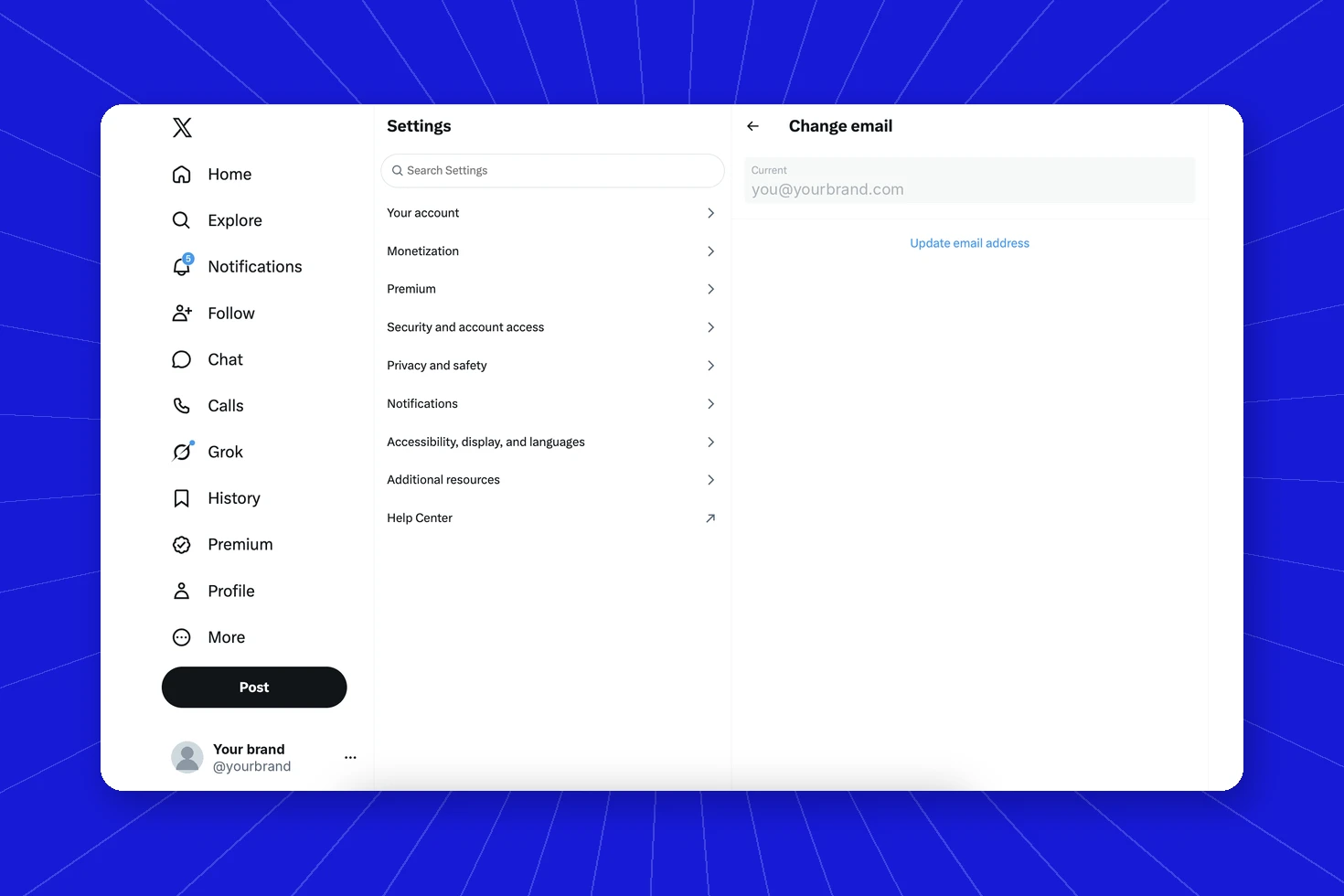
How to change your email on X
- Open the menu and select Settings and privacy.
- Select Your account, then Account information, and confirm your password.
- Select Email, enter the new address and select Save.
- Confirm it from the email X sends.
How to change your email on Instagram
- Go to your profile, tap the menu and open Accounts Center.
- Tap Personal details, then Contact info.
- Tap Add new contact, choose Add email, and enter the new address.
- Confirm it with the code, then remove the old email.

How to change your email on Facebook
- Open the menu, then Settings & privacy > Settings, and go to Accounts Center.
- Tap Personal details, then Contact info.
- Add the new email, confirm it, then remove the old one.
How to change your email on LinkedIn
- Click Me, then Settings & Privacy.
- Select Sign in & security, then Email addresses.
- Click Add email address, enter it and confirm it from your inbox.
- Click Make primary next to the new email, then remove the old one if you want.

Why brand accounts need company-owned emails
Plenty of brand accounts are still tied to the email of whoever created them. When that person leaves, or their inbox is hacked, the brand can lose control of the account. Attackers know this, and changing the account email is one of the first things they do after an account takeover so the real owner can't get back in.
A few simple rules help:
- Use a shared company address, such as social@yourbrand.com, that IT controls.
- Turn on two-factor authentication for that inbox and every social account.
- Keep a list of which email each account uses.
- Review account details whenever someone leaves the team.
Know who controls your brand's accounts
Spikerz gives brands one view of every social account, who has access and what's changed, so you can spot an unexpected change to account details before it turns into a lockout. Book a consultation to see how Spikerz keeps your accounts in your team's hands.
