How to change or reset your YouTube password


YouTube doesn't have its own password. You change or reset it through your Google Account. This guide covers both on desktop and mobile, what to do if you've lost your recovery details, and how to keep a brand channel safe.
YouTube doesn't have a separate password. You sign in with your Google Account, so changing your YouTube password means changing your Google password. That also changes it for Gmail, Drive and any other Google service you use with the same account.
Here's how to change it, reset it if you've forgotten it, and keep your channel secure.
How to change your YouTube password on desktop
- Go to YouTube and click your profile picture in the top right.
- Select Manage your Google Account.
- Click Security in the left menu.
- Under How you sign in to Google, click Password.
- Enter your current password and click Next.
- Enter your new password twice and click Change password.

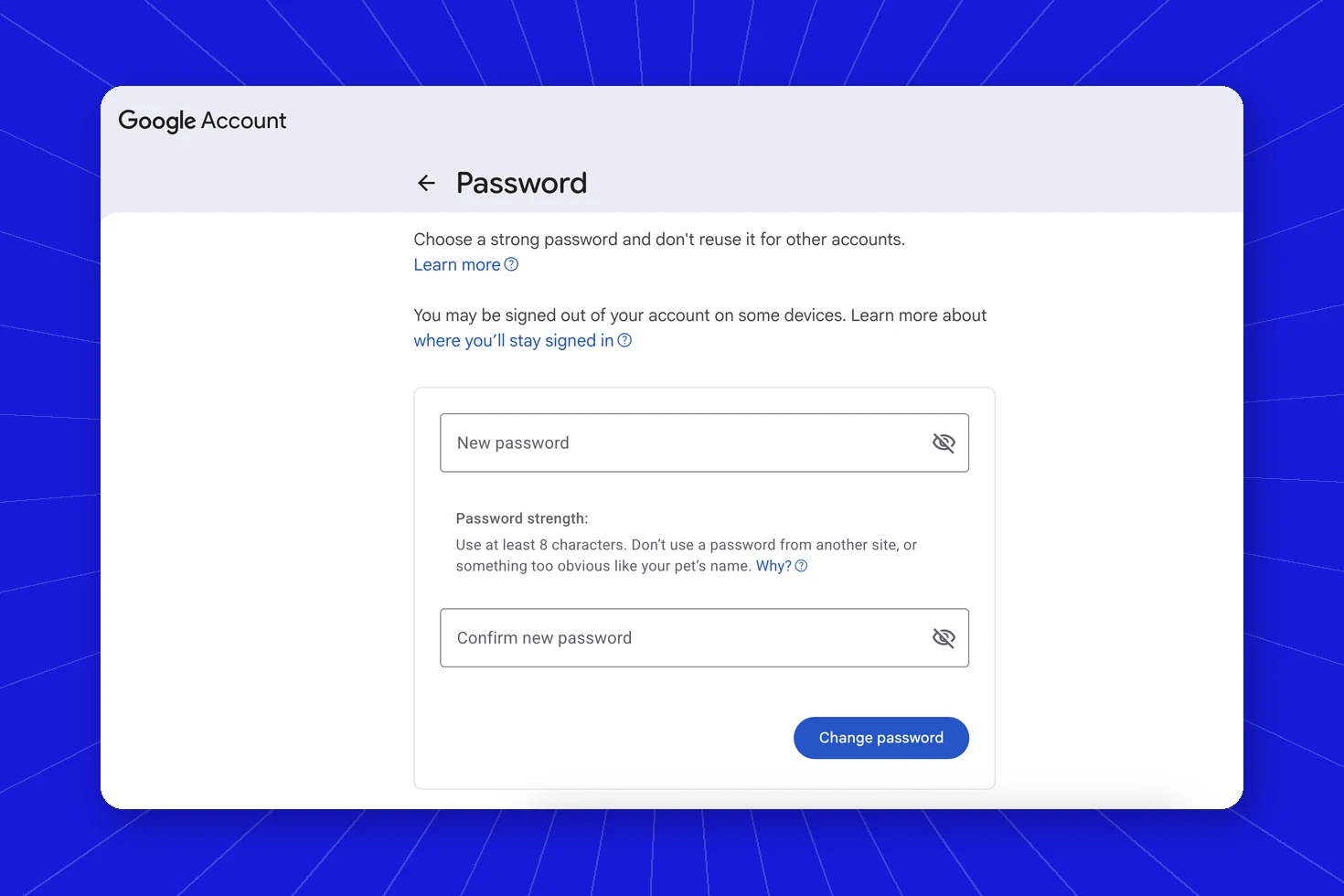
You can also go straight to the Security page of your Google Account.
How to change your YouTube password on mobile
- Open the YouTube app and tap your profile picture.
- Tap Google Account (or Manage your Google Account).
- Tap Security, then Password.
- Confirm your current password, then enter your new one and save.
.jpg)
How to reset your YouTube password if you forgot it
- Go to the Google sign-in page and enter your email address.
- Click Forgot password?
- Enter the last password you remember, or choose Try another way.
- Confirm it's you with the code Google sends to your recovery email or phone.
- Create a new password.
What if you've lost access to your recovery email or phone?
- Follow Google's account recovery steps and answer as many questions as you can. Using a device and location you've signed in from before helps.
- If you've forgotten which email you use, click Forgot email? on the sign-in page.
- If your channel uses a Brand Account, another owner or manager can still access it and can add you back.
Common problems
- The code isn't arriving: check your spam folder, and make sure your phone has signal.
- Google says it can't verify it's you: try again from a device you've used before, or wait a few days and retry.
- You changed the password but someone's still signed in: go to Security > Your devices and sign out any device you don't recognize.
How to keep your YouTube channel secure
Many YouTube channel takeovers begin with a convincing email, often a fake sponsorship offer, that tricks a creator or team member into running malware that steals their login session. Once attackers are in, they rename the channel and stream crypto scams. You can read how these YouTube hacks happen in more detail.
To lower the risk:
- Turn on 2-Step Verification on every Google Account linked to your channel.
- Use a Brand Account so you can give people access without sharing your password.
- Remove managers and old agencies who no longer need access.
- Be careful with sponsorship emails that ask you to download files.
Protect your brand's YouTube channel
Spikerz helps brands and creators keep their YouTube channels safe by spotting suspicious logins, managing who has access, and filtering scam and phishing comments before your audience sees them. Book a consultation and we'll walk you through how it protects your channel.
