Suspicious login attempt on Instagram? What to do

A suspicious login attempt alert means Instagram stopped a login from a device or location it didn't recognize. Check the alert is real in the app and review where your account is logged in. Then change your password, turn on two-factor authentication, get new backup codes and remove apps you don't use. Brands with several people on one account should also review who has access.
Getting a suspicious login attempt alert from Instagram is unsettling, especially when the account belongs to your brand. The good news is that the alert usually means Instagram's security did its job and stopped the login before anyone got in. What you do next decides whether it stays that way.
This guide explains what the alert means, how to check it's genuine, how to see who's logged into your account, and the five steps to lock it down.
What does a suspicious login attempt on Instagram mean?
A suspicious login attempt alert means someone tried to log into your Instagram account from a device, browser or location Instagram doesn't recognize, and Instagram paused the login until it's confirmed. It could be you on a new phone, a VPN or a different network. It could also be someone who has your password and is trying to take over the account, which is known as an account takeover.
What happens if you ignore the alert?
If the login was you, nothing happens. Instagram just didn't recognize your device. If it wasn't you, act straight away. Whoever triggered the alert may already have your password, and attackers usually move fast to change the email, phone number and password so you can't get back in. Here's how attackers take over Instagram accounts.
How to check the alert is really from Instagram
Some suspicious login emails are fake. They're phishing emails designed to send you to a fake login page that steals your password. Before you click anything:
- Don't use the links in the email. Open Instagram yourself instead.
- Go to Settings, then Meta Account (or Accounts Center), then Login and security, then Recent emails, and choose your profile.
- Check the Security tab. It lists the security emails Instagram has sent you in the last 14 days.
- If the email you received isn't on that list, it's fake. Delete it and don't reply.
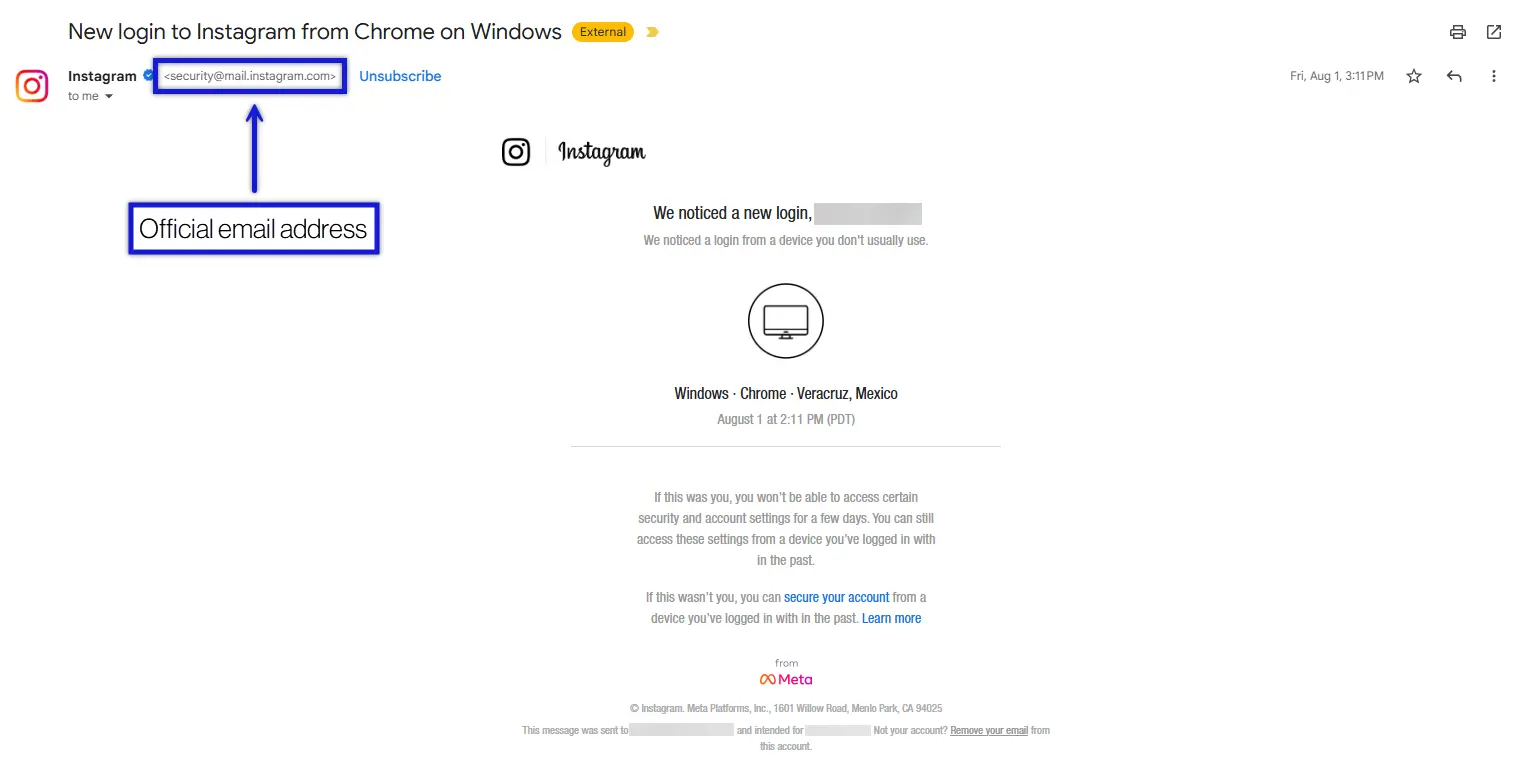
Real Instagram security emails come from these addresses: @mail.instagram.com, @support.instagram.com, @support.facebook.com, @facebookmail.com and @global.metamail.com. A matching sender is a good sign, but trust the Recent emails check, because sender addresses can be faked. Instagram also never contacts you about account security through direct messages.
How to see who logged into your Instagram account
Instagram shows every device that's recently logged into your account, with its approximate location. It won't tell you who the person is. To check:
- Go to Settings, then Accounts Center, then Password and security.
- Choose Where you're logged in, then choose your account.
- Choose Select devices to log out, pick any device you don't recognize, then choose Log out.
- Change your password straight away.
If you don't see Where you're logged in, go to Settings, then Login activity. Choose This wasn't me next to any login you don't recognize, and follow the steps to reset your password. Menu names can vary slightly between app versions.
How to secure your Instagram account in 5 steps
If you want the full picture, here's how to protect your Instagram account from hackers. For now, these five steps cover what matters most after an alert. Do them in this order:
1. Change your password
Once you've confirmed the alert is real and the login wasn't you, change your password first. A new password stops anyone from using the old one to get in.
Make it at least 20 characters, randomly generated, with a mix of upper and lower case letters, numbers and symbols. Long, random passwords are what stops attackers guessing their way in.

Here's an example of a strong password: 0m3Ue0cNPSzAU#*PaZE2 (just don't use this one, since it's now public).
Don't reuse passwords across sites. If one site is breached, attackers try the same email and password everywhere else. If you're worried about remembering them, use a password manager.
2. Turn on two-factor authentication (2FA)
Two-factor authentication (2FA) asks for a second code whenever someone logs in from a new device. Even if an attacker has your password, they can't get in without that code. To turn it on:
- Click More in the bottom left, then click Settings.
- Click See more in Accounts Center, then click Password and security.
- Click Two-factor authentication, then select your account.
- Choose the security method you want to add and follow the on-screen instructions.
Once 2FA is on, save your backup codes somewhere safe so you can still log in if you lose your phone. If several people manage the account, set up 2FA for your whole team so codes don't depend on one person's phone.
3. Get new backup codes
Backup codes are one-time codes that let you log in when you can't get a 2FA code. If someone got into your account while 2FA was on, they may have copied them, which would let them back in even after you change your password.
- Click More in the bottom left, then click Settings.
- Click Accounts Center, then click Password and security.
- Click Two-factor authentication, then click the account you'd like new backup codes for.
- Click Additional methods.
- Click Backup codes.
- Click Get new codes.
Getting new codes cancels the old ones, so any copies an attacker made stop working.
4. Remove third-party apps you don't use
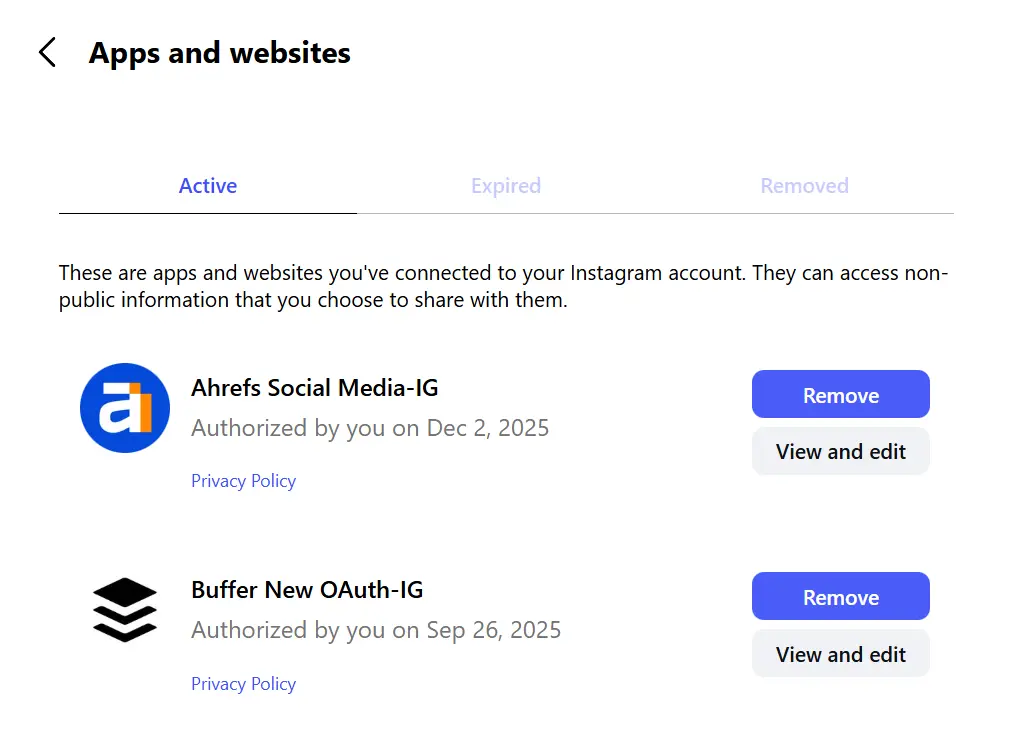
Apps and websites you've connected to Instagram can keep access long after you stop using them, and some ask for more permissions than they need. If one of them is breached, it can become a way into your account. Remove any you don't use or don't recognize:
- Click More in the bottom left, then click Settings.
- Under Your app and media, click Website permissions.
- Click Apps and websites, then click Active.
- Click Remove next to the app you'd like to remove.
5. Set up account monitoring
Instagram only alerts you to some threats, and often after they've happened. If the account matters to your business, a dedicated social media security tool watches it around the clock.
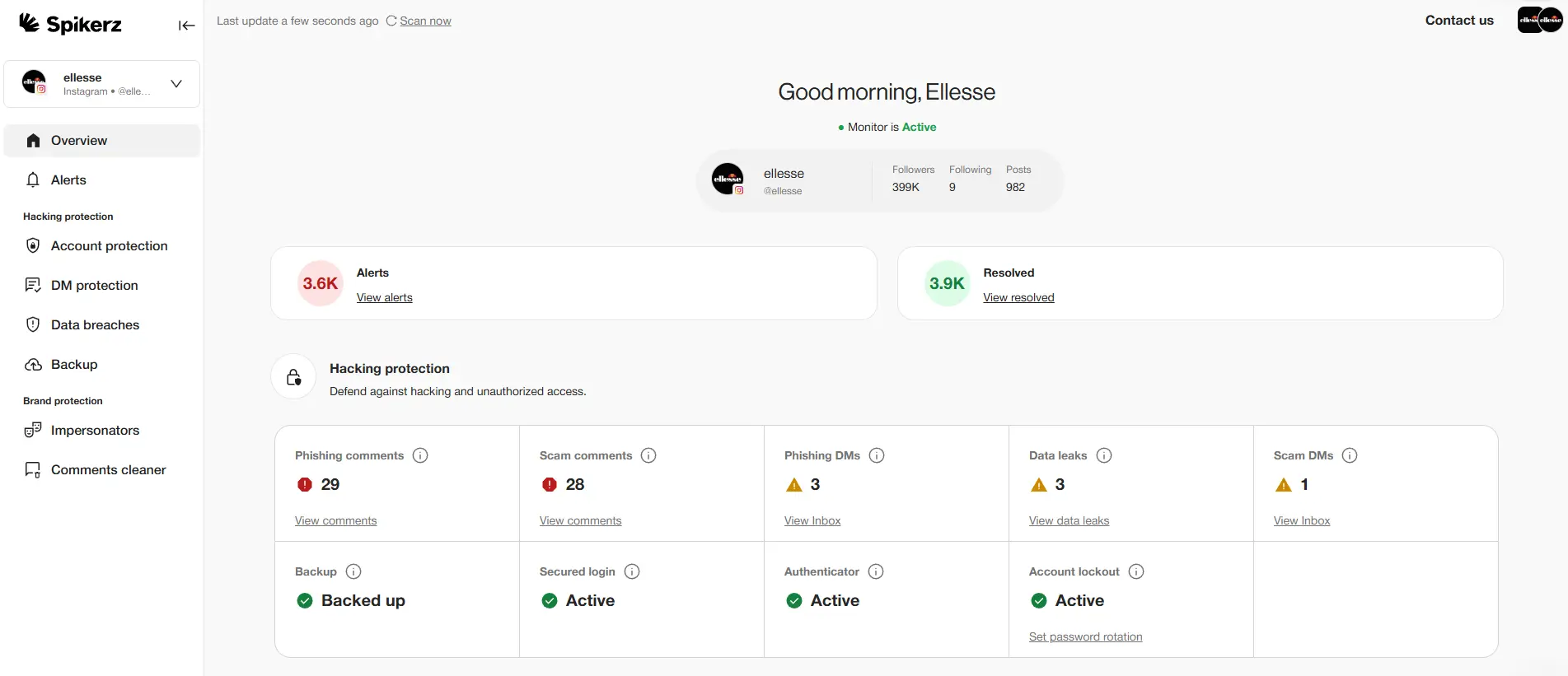
Spikerz account takeover protection helps you:
- Spot suspicious logins and unexpected account changes, and alert your team straight away.
- Catch phishing links and scams in comments and DMs.
- Find impersonator accounts using your brand and get them taken down.
- See who has access to each account, and remove anyone who shouldn't have it.
- Share 2FA codes safely across your team.
If your brand's Instagram account is too important to lose, book a consultation and we'll show you how Spikerz protects it.
What brands should do differently
On a brand account, a suspicious login alert is harder to judge, because several people and agencies may log in from different places. A few habits make it much easier:
- Give each person their own access through Meta Business Suite instead of sharing one password.
- Remove access as soon as someone leaves the team or an agency contract ends, and manage who has access in one place so nothing gets missed.
- Turn on 2FA and agree who holds the backup codes, so one person's lost phone doesn't lock everyone out.
- Decide in advance who responds to a security alert, so nobody assumes someone else has dealt with it.
Conclusion
A suspicious login attempt alert doesn't always mean you've been hacked, but it's never one to ignore. Check it's genuine in the app and review where you're logged in. Then change your password, turn on 2FA, refresh your backup codes and clean up connected apps.
For brand accounts, the bigger risk is what happens between alerts: logins nobody is watching for, and old access nobody removed.
Book a consultation to see how Spikerz protects your brand's Instagram.